GitHub Copilot Workshop · 1h 15m

GitHub Copilot Practical 101

Step 1 of 8 ~75 min left
Issues? DM me
GitHub Copilot mascot

Goal

By the end of the session, everyone in the room has:

Understand

What GitHub Copilot is and why it's your goto AI pair programmer.

Set up

Successfully set up GitHub Copilot in VS Code.

Hands on

Successfully started using GitHub Copilot in VS Code autocompletions, inline chat, agent mode.

Understand

Basics of Prompt Engineering and common pitfalls.

Optimise

Tips for Token Optimisation to get more from every AI credit.

Self coach

Tips for Self Coaching using your own history.

Duration: 2 minutes

Your AI pair programmer, built for code.

Built for programming Multi-model support Multi-language support
Works inside the IDEs your teams already use.
Duration: 10 minutes

Install in VS Code

Official guide: Set up GitHub Copilot in VS Code

Before you install

GitHub account

Sign in with the GitHub account that owns your Copilot seat.

GitHub Copilot license

That account must already have Copilot enabled before suggestions and chat will work.

1
MarketplaceFind Copilot in Extensions
2
Sign inUse the licensed GitHub account
3
ReadyConfirm Copilot is active in VS Code

Step by step

1

Install the extensions

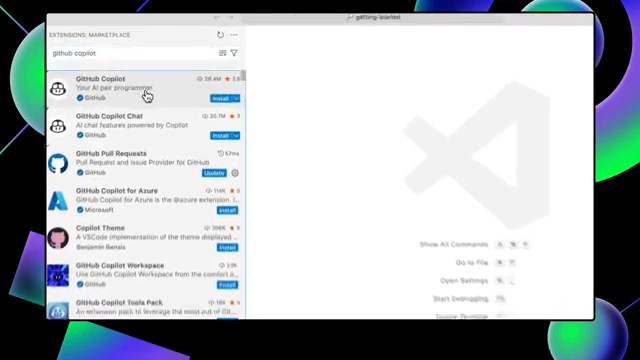
Open the Extensions view, search for GitHub Copilot, and install the two extensions you need:

  • GitHub Copilot — inline coding suggestions.
  • GitHub Copilot Chat — a conversational assistant for coding tasks.
VS Code Extensions Marketplace search results showing GitHub Copilot and GitHub Copilot Chat.
Search for GitHub Copilot and confirm both Copilot and Copilot Chat appear in the results.
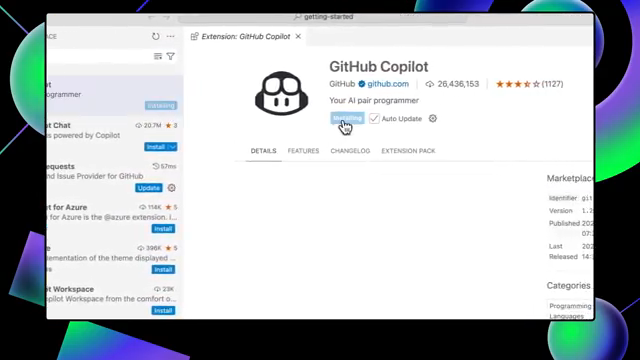
GitHub Copilot extension page in VS Code with the Install button visible.
Open the details page and click Install before moving on to sign-in.
2

Sign in to VS Code

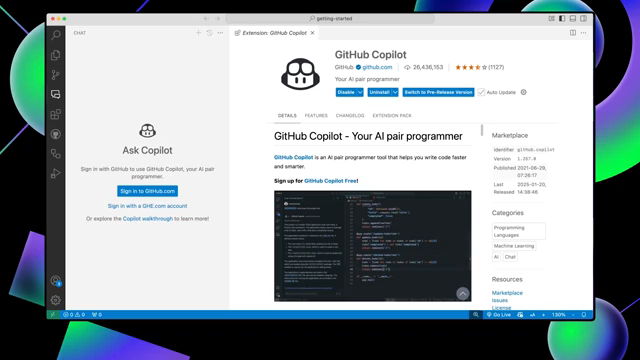
Sign in with the GitHub account that has Copilot access. If VS Code does not prompt you, open the Accounts menu in the Activity Bar and choose Sign in with GitHub to use GitHub Copilot.

VS Code showing the Copilot sign-in panel with buttons to sign in using GitHub.
Use the Copilot side panel or the Accounts menu to start sign-in with the licensed GitHub account.
3

Authorize in the browser

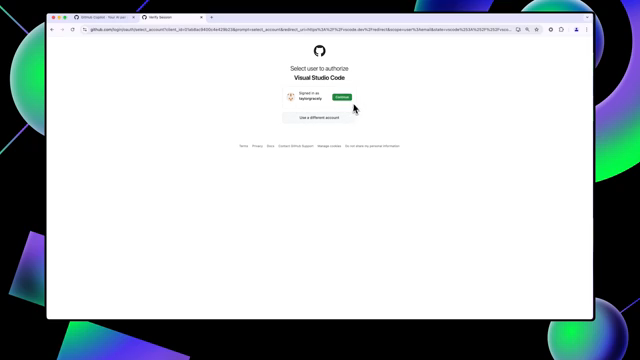
Your browser opens. Click Continue, then Approve, and return to VS Code.

GitHub browser authorization page with the button to continue and complete Visual Studio Code authorization.
In the browser, continue the GitHub flow and approve access so VS Code can finish connecting Copilot.

Ready check

Back in the editor, look for the Copilot icon and a bottom status that shows Ready. If prompted, select the same licensed GitHub account there too.

Walk through the VS Code setup

Show the install, sign-in, and ready state once so the room knows exactly what success looks like before they try it themselves.

Duration: 10 minutes

Hands on in VS Code

Watch the walkthrough first

Use this walkthrough to show the participant flow inside VS Code before they run the same commands themselves.

Duration: 12 minutes

How to think about it

LLMs are a pure word
probability machine

0.3 Used
0.4 Repository
0.6 Airplane
0.7 Adopted
0.8 AI developer tool
0.2 Chat
Context Tokens Limitations

Your Prompt

Be precise.

Add description.

Add stop signals.

“Stop if X.”

Add known context beforehand.

Files, Folders, Websites, etc.

With that in mind, compare these two prompts:

Vague

“Fix the bug in the checkout code.”

Precise

“There’s a bug in checkout.py where the total doesn’t include tax. Update calculate_total to add tax using the existing TAX_RATE constant in config.py. Once the fix is in and the tests in test_checkout.py pass, stop.”

Be precise Known context Stop signal
Copilot CLI
$/plan
# turn a request into a reviewable, step-by-step plan before any edits
Duration: 15 minutes

GitHub AI credit usage is based on token consumption

Biggest bucket

Input tokens

What you send:
  • Prompts and new context
  • Can grow with large files / codebases
Relative cost Moderate
Most expensive

Output tokens

What you get:
  • AI-generated responses
  • Tool use
  • Highest per-token cost
Relative cost Highest
Cheapest

Cached tokens

What's reused:
  • Context from previous interactions in a session
  • Improves speed and efficiency
  • Least expensive per token cost
Relative cost Lowest

Right-size the model

Default to Auto mode

Divide & conquer: Research → Plan → Implement

“I want to change X — what files are relevant?”
/research Gemini 2.5 Pro
System
prompt
Prompt File File File File File File Plan
input
/plan Opus 4.7
System
prompt
Prompt Plan
input
File File Reasoning Precise
spec
/fleet GPT-5.4
System
prompt
Prompt Precise
spec
File File Change calls
System prompt Prompt File in context Reasoning Handoff artifact
Duration: 15 minutes

Coach yourself with your own history

Find what you're not using

Copilot CLI
$/chronicle tips
# map recent history to missed CLI and repo capability
Copilot CLI
Tips · 3 patterns from your recent sessions
1
Split research from productionWorkflow
You mix deep research and production edits in one thread. Run research in a parallel session, then merge findings back.
2
Make prompts measurablePrompting
Recent prompts were short or subjective. Try Goal → Scope → Constraints → Output → Done to cut revision loops.
3
Reuse setup across sessionsAutomation
You re-set the same build, test, and review steps. Move them into repo guidance or /commands so new sessions start ready.

Profile the last 30 days

Copilot CLI
$/chronicle cost-tips
# profile 30 days by agent, then drill into cost drivers
Copilot CLI
Cost tips · 3 ways to cut spend
1
Right-size the modelBiggest lever
Premium models were 83% of your input tokens — run bulk edits on a cheaper one with /model, save the reasoning model for final passes.
2
Reset long sessionsPer-turn cost
Input tokens climb every turn — one mid-session /compact or /new would've saved ~20M re-sent tokens.
3
Cut attachment churnHidden multiplier
Attachment-heavy sessions cost ~11× more — attach an image once, then reference its path instead of re-pasting.

Stop the guessing

Copilot CLI
$/chronicle improve
# write your repeated fixes into copilot-instructions.md
Without it the agent guesses
  • Runs npm install, not pnpm
  • Uses spaces, not tabs
  • Scatters tests beside the code
With it copilot-instructions.md
  • Runs pnpm install
  • Indents with tabs
  • Puts tests in __tests__/
Duration: 8 minutes

Wrap-up

Keep going after today